

Master DNS Resolution Using the dig Command: A Step-by-Step Guide
Explore DNS Layers Simply Using the dig Command
Have you ever wondered what happens when you put the address "google.com" in the address bar of your browser and then press enter? How does your computer find the Google server? The answer is in a system called the Domain Name System, or DNS for short. We're going to explain it in this guide using aa powerful tool called dig.
What is DNS and Why Does Name Resolution Exist?
Think of DNS as the internet's phonebook. Just like you remember "Mom" instead of her phone number, you remember "google.com" instead of "142.250.185.46" (an IP address).
Why Do We Need DNS?
Computers communicate using IP addresses - sequences of numbers like 192.168.1.1. But humans are terrible at remembering numbers! Imagine having to remember:
142.250.185.46for Google157.240.241.35for Facebook104.244.42.1for Twitter
This is impossible to scale. DNS solves this problem by translating human-friendly domain names into computer-friendly IP addresses. This process is called name resolution.
What is the dig Command and When is it Used?
dig stands for Domain Information Groper. It's a command-line tool which tail how DNS resolution works behind the scenes.
When Do You Use dig?
It is commonly used for troubleshooting when a website is not loading, as it helps you check whether DNS resolution is working correctly or if the problem lies elsewhere
dig is also a great learning tool, because it clearly shows how DNS queries flow through different layers of the internet, such as root, TLD, and authoritative name servers.
From a debugging perspective, engineers use dig to verify that DNS records (like A, NS, or MX records) are configured properly and returning the expected results.
In system design, dig helps you see the real DNS infrastructure behind domain names, making it easier to understand how large-scale systems route traffic reliably and efficiently.
Basic dig Syntax
dig example.com
This simple command shows you how your computer resolves a domain name to an IP address.
The DNS Hierarchy: Understanding the Layers
Before we dive into dig commands, let's understand how DNS is organized. DNS isn't just one big database it's a hierarchical system with three main layers:
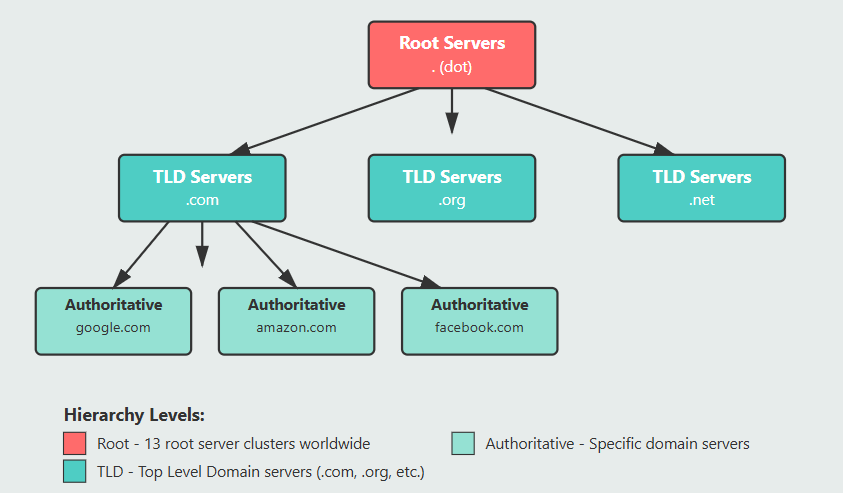
As you can see from the diagram, DNS works in three layers:
Root Servers - The top of the hierarchy (represented by a dot ".")
TLD Servers - Top-Level Domain servers (.com, .org, .net, etc.)
Authoritative Servers - Servers that hold the actual DNS records for specific domains
Now let's explore each layer using the dig command.
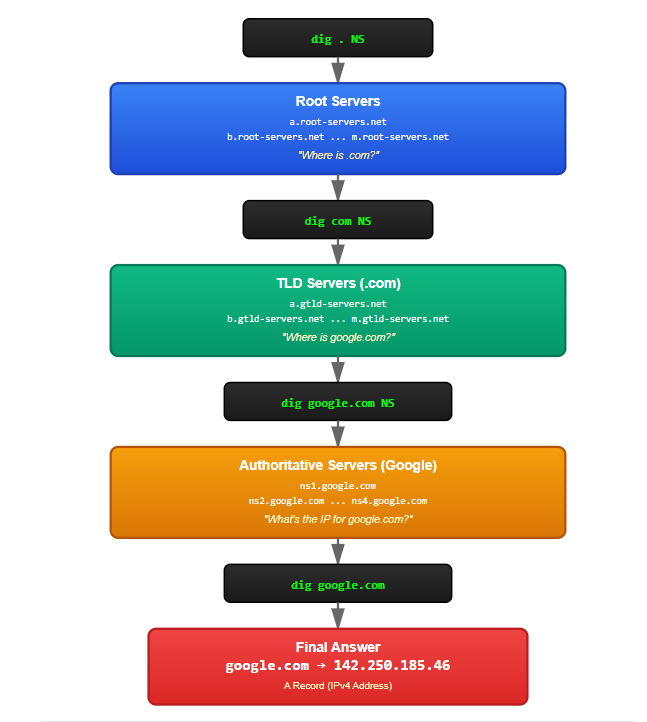
Understanding dig . NS and Root Name Servers
The root of the DNS system is represented by a dot (.). Let's query it:
dig . NS
What This Command Does
This command asks: "Who are the root name servers on the internet?"
Sample Output Explained
;; ANSWER SECTION:
.                    518400  IN  NS  a.root-servers.net.
.                    518400  IN  NS  b.root-servers.net.
.                    518400  IN  NS  c.root-servers.net.
...
.                    518400  IN  NS  m.root-servers.net.
Breaking Down the Output
.: Represents the root of DNS518400: Time-to-live in seconds (how long to cache this info)NS: Name Server recorda.root-servers.net.: One of the root name servers
Key Insights
There are 13 root name server identities (labeled a through m), but these are actually replicated globally using a technique called anycast. So there are hundreds of physical servers, but only 13 logical addresses.
Think of root servers as the master directory that knows where to find information about all TLDs (.com, .org, .net, etc.).
Why Root Servers Matter
When your computer wants to resolve any domain name, it starts by asking a root server: "Where can I find information about .com domains?" The root server responds with the addresses of TLD name servers.
Understanding dig com NS and TLD Name Servers
Now let's move one level down the hierarchy:
dig com NS
What This Command Does
This asks: "Who are the authoritative name servers for the .com top-level domain?"
Sample Output Explained
;; ANSWER SECTION:
com.                 172800  IN  NS  a.gtld-servers.net.
com.                 172800  IN  NS  b.gtld-servers.net.
com.                 172800  IN  NS  c.gtld-servers.net.
...
com.                 172800  IN  NS  m.gtld-servers.net.
Breaking Down the Output
com.: The .com top-level domain172800: Cache time (48 hours)a.gtld-servers.net.: One of the .com TLD name servers
Key Insights
The TLD name servers manage all domains within their extension. The .com TLD servers know about every .com domain, including:
And millions more
Why TLD Servers Matter
TLD servers are like a specialized directory. If root servers are the master directory, TLD servers are the "Commerce" section that knows all .com businesses. When you query a TLD server about google.com, it tells you: "Go ask Google's authoritative name servers."
Understanding dig google.com NS and Authoritative Name Servers
Now let's find out who manages Google's DNS:
dig google.com NS
What This Command Does
This asks: "Who are the authoritative name servers for google.com?"
Sample Output Explained
;; ANSWER SECTION:
google.com.          172800  IN  NS  ns1.google.com.
google.com.          172800  IN  NS  ns2.google.com.
google.com.          172800  IN  NS  ns3.google.com.
google.com.          172800  IN  NS  ns4.google.com.
Breaking Down the Output
google.com.: The specific domain we're queryingns1.google.com.: One of Google's authoritative name servers
Key Insights
These are Google's own name servers - the servers that have the final, authoritative answer about where google.com points to. Google controls these servers, so they can update their DNS records instantly.
Why Authoritative Servers Matter
Authoritative name servers are like the company's own reception desk. They have the most accurate, up-to-date information about their domain. When you ask ns1.google.com about google.com, it gives you the actual IP address.
Understanding dig google.com and the Full DNS Resolution Flow
Finally, let's do a complete DNS lookup:
bash
dig google.com
Sample Output Explained
;; QUESTION SECTION:
;google.com.                    IN      A

;; ANSWER SECTION:
google.com.          300     IN      A       142.250.185.46
Breaking Down the Output
A: Address record (maps domain to IPv4 address)142.250.185.46: The IP address of google.com300: Cache for 5 minutes
The Complete DNS Resolution Flow
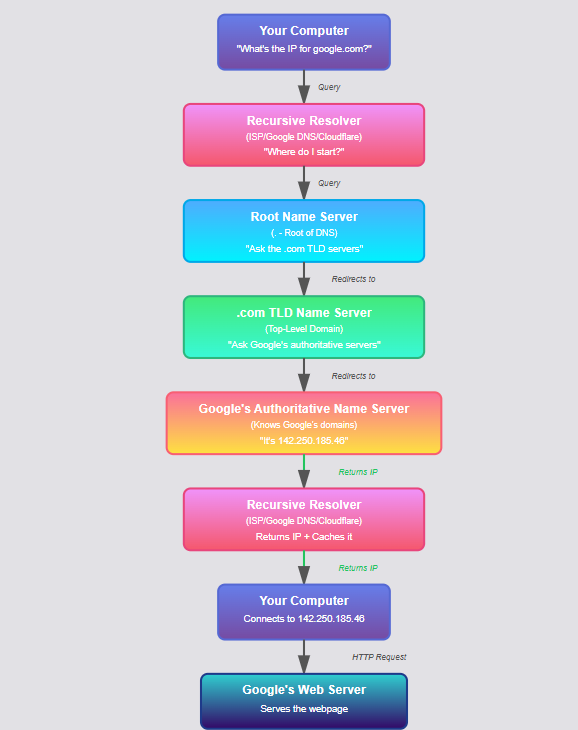
Here's what happens when you type google.com in your browser:
Step-by-Step Breakdown
Step 1: You Make a Request You type "google.com" in your browser and press Enter.
Step 2: Check Local Cache Your computer first checks if it already knows the IP address (cached from a previous visit).
Step 3: Ask Recursive Resolver If not cached, your computer asks a recursive resolver (usually provided by your ISP or services like Google DNS 8.8.8.8).
Step 4: Resolver Queries Root Server The resolver asks a root name server: "Where can I find .com domains?" Root responds: "Ask these TLD servers: a.gtld-servers.net, b.gtld-servers.net, etc."
Step 5: Resolver Queries TLD Server The resolver asks a .com TLD server: "Where can I find google.com?" TLD responds: "Ask these authoritative servers: ns1.google.com, ns2.google.com, etc."
Step 6: Resolver Queries Authoritative Server The resolver asks ns1.google.com: "What's the IP address for google.com?" Authoritative server responds: "142.250.185.46"
Step 7: Resolver Returns Answer The resolver sends the IP address back to your computer and caches it for future use.
Step 8: Browser Connects Your browser connects to 142.250.185.46 and loads the webpage.
Visual Representation of dig Commands Mapping to DNS Stages
How Recursive Resolvers Use This Information Behind the Scenes
Your browser doesn't do all these DNS queries. Instead, a recursive resolver does the heavy lifting for you.
What is a Recursive Resolver?
A recursive resolver is a DNS server that:
Takes your query (e.g., "google.com")
Performs all the steps (root → TLD → authoritative)
Returns the final answer
Caches results to speed up future queries
Common Recursive Resolvers
Your ISP's DNS: Automatically provided when you connect to the internet
Google Public DNS: 8.8.8.8 and 8.8.4.4
Cloudflare DNS: 1.1.1.1
OpenDNS: 208.67.222.222
Caching: The Speed Secret
Imagine if every single web request required going through all DNS layers. The internet would be incredibly slow!
Recursive resolvers cache (store) DNS results:
Root NS records: Cached for days
TLD NS records: Cached for hours
Domain A records: Cached for minutes to hours
This means most DNS queries are answered instantly from cache, without contacting any name servers.
Connecting dig Output to Real-World Browser Requests
Let's connect everything to what happens when you browse the web.
Scenario: You Visit google.com
What You See:
Type "google.com" in browser
Press Enter
Page loads
What Actually Happens (using dig knowledge):
bash
# Your recursive resolver does this automatically:

# Step 1: Find .com TLD servers from root
dig . NS +norecurse
# Returns: a.gtld-servers.net, etc.

# Step 2: Find google.com's authoritative servers
dig @a.gtld-servers.net google.com NS +norecurse
# Returns: ns1.google.com, etc.

# Step 3: Get the IP address
dig @ns1.google.com google.com A +norecurse
# Returns: 142.250.185.46

# Step 4: Browser connects to 142.250.185.46
Performance Optimization
First Visit: May take 100-200ms for full DNS resolution Subsequent Visits: Usually under 1ms thanks to caching
This is why websites load faster after you've visited them once.
Practical System Design Insights
1. DNS is a Distributed System
DNS is one of the most successful distributed systems ever built. It handles billions of queries per day with:
No single point of failure
Geographic distribution
Hierarchical delegation
Aggressive caching
2. Why Multiple Name Servers?
Notice every level has multiple name servers (a through m for root, ns1 through ns4 for Google). This provides:
Redundancy: If one server fails, others continue working
Load Balancing: Queries are distributed
Geographic Proximity: Servers are placed worldwide for faster responses
3. TTL (Time to Live) Strategy
Different TTL values serve different purposes:
Root/TLD NS records: Long TTL (days) because they rarely change
Domain A records: Shorter TTL (minutes/hours) for flexibility
Dynamic services: Very short TTL (30-60 seconds) for quick updates
4. DNS as a Single Point of Failure
Despite its robustness, DNS is critical. If DNS fails:
Your browser can't find websites
Apps can't connect to services
The internet effectively stops working
This is why DDoS attacks sometimes target DNS infrastructure.
Troubleshooting with dig
Example 1: Website Not Loading
bash
dig example.com

# If you get no answer, DNS might be misconfigured
# Check each level:
dig example.com NS  # Are there name servers?
dig @ns1.example.com example.com  # Does the authoritative server respond?
Example 2: Checking DNS Propagation
When you change DNS records, they take time to propagate:
bash
# Check what your resolver sees
dig example.com

# Check what the authoritative server says
dig @ns1.example.com example.com

# If they differ, propagation is still happening
Example 3: Finding All Records
bash
dig example.com ANY  # Shows all DNS record types
dig example.com MX   # Mail server records
dig example.com TXT  # Text records (often used for verification)
Summary: The Big Picture
DNS resolution is a journey through a hierarchy:
Root Servers (
.): The starting point, knows where TLDs areTLD Servers (
.com): Knows where all .com domains areAuthoritative Servers (
google.com): Knows the actual IP address
The dig command lets you peek behind the curtain and see each step of this journey.
Key Takeaways
✅ DNS translates human-readable domains to IP addresses ✅ dig is a powerful tool to inspect DNS resolution ✅ DNS works in layers: Root → TLD → Authoritative ✅ NS records point to the next level in the hierarchy ✅ Recursive resolvers do the hard work for your browser ✅ Caching makes DNS fast and efficient ✅ Multiple name servers provide redundancy and performance
Commands Quick Reference
bash
dig . NS                  # View root name servers
dig com NS                # View .com TLD servers
dig google.com NS         # View Google's authoritative servers
dig google.com            # Get IP address for google.com
dig google.com +trace     # See the full resolution path
Try It Yourself!
Open your terminal and run these commands:
bash
# Explore the DNS hierarchy
dig . NS
dig org NS
dig wikipedia.org NS
dig wikipedia.org

# Trace the full path
dig google.com +trace

# Check your favorite website
dig github.com
Understanding DNS helps you troubleshoot network issues, optimize website performance, and design better systems. Now you know exactly what happens behind the scenes when you browse the web!
Want to dive deeper? Try exploring:
digoptions like+short,+trace,+norecurseDifferent record types: A, AAAA (IPv6), MX, TXT, CNAME
How DNS security (DNSSEC) prevents DNS spoofing
How CDNs use DNS for global content delivery
Happy digging! 🚀


